Don't Flash Your Privates Online
We interrupt our regular newsletter on energy and the environment to have a serious talk with you about "digital hygiene."

A note: this article is quite long, because online security is a complicated topic. To help with that, we've set this article up to be "skimmable": if you scroll through it and read the internal headers, you can get a takeaway version of the recommendations in under 30 seconds.
A recent article in the New York times pushed us over the edge when it claimed:
If you’re still being careless about things like the strength of the passwords you choose, you’re in for a pretty bad time. If there was ever a time to finally take your cybersecurity practices seriously, it’s now.1
They are correct.
It's only going to get worse. Proliferation of attacks and dangerous online situations will accelerate in the next while, in part because (as the NYT says) Artificial Intelligence is such a powerful tool for those who want to behave maliciously. No matter what else it may do, AI will make taking advantage of you and stealing from you easier.
Fortunately, making your online work life safer isn’t all that difficult.
Here are a few easy things you can do to help keep your content private and to protect your family, your job, and yourself.
Use difficult and unique passwords
Be sure you don’t re-use your passwords. Have one password for each mail address and a very different one for each of Facebook, X, Slack, Trello, and every other application or web site.
More importantly, stop believing you need to remember your passwords. If you can remember them, they are easy to crack.
What's a good password?
- Longer is better … at least 10 characters
- Should have a mix of upper- and lower-case letters
- Contain at least one number
- Include one of ~!@#$%^&*()_+
A common trick is to take a short phrase you know, use underscore for spaces, and then swap out symbols for normal letters to provide some variation, as in:
C0v1D_ju5T_St1nk5!
or
2o27_is_S0_over
To be candid, this was a great trick ... in 1988.
If you think about it, the letter order in many of the "swap-out" style passwords is easily predictable. If you saw j, u, (blank), and a T, then you'd immediately guess that the third letter would be either an upper or lower case "s" or a "5." Not the most secure arrangement. In part, using the common tricks for substitutions is only a little bit helpful because those tricks are ... common. They are easy to guess.
On top of that, many state-of-the-art sites will reject any password that contains a "dictionary-recognizable" word ... so the second sample password wouldn't work.
What do you do?
Use a password organizer
A password organizer is an app that contains your passwords. You need a password to open the application ... to see the rest of your passwords. If you can get an organizer that requires two-factor authentication, you're even safer: a password and some other way of validating your identity (like a hardware key, or a fingerprint, for example).
Favour local storage over cloud storage.With an organizer, you only need to remember one password. That means that the rest of your passwords do NOT need to be memorable. Instead, you can make them very long — as long as the application or web page will allow — and get them from the password organizer. Now, your passwords can look something like:
ntsHd9876JkxXpf.54oEFQJI6Pjthx987%$^&$^&8GXbl/ngfcyUJkixBN98Fxb
That will be hard to guess.
A gotcha here: some sites limit password length. A few of these will use only the allowed number of characters and toss the rest away...some without telling you. You'll think you have a 45-character password, but the site only recognizes 32 of the characters: that can make getting back in to the site very tough. Also, not all special characters (&^%) can be used on all sites. Before you use a huge, difficult password, check the password rules for the site or the app. (We know a large number of sites that apply password rules inconsistently throughout the interface. One we know of allows 64 characters on entry, but only 32 characters internally.)
Also, be careful about your computer or phone password once you have all your other passwords stored in an organizer: a locked and passworded computer is much more secure than an unlocked and un-passworded one. For example, Passwords.app on your Mac is pretty secure cryptographically, but it's safest if your Mac automatically locks itself when idle and if your Mac password is strong.
I personally have a triple-level system: my laptop locks in just a couple of minutes when untended. To get at my passwords, I need to unlock the laptop first using a fingerprint. THEN I need to launch my password manager, which requires a password to start. Once it's running, I have to ask it to open a file ... which is heavily encrypted and requires a third password to open. It's not perfect, but it's a lot safer than writing my password on a sticky on the front of my screen and using that same password for all my online accounts.
Seek out 2FA (two-factor authentication)
Wherever you have an option to use two-factor authentication (2FA) of some sort, use it. This might mean you will have a log-in code sent to a cell phone, or you give a keyword from an automatically-generated "bingo" card, or you use a special plug-in hardware security key to log in. (Hardware keys do work, but have real drawbacks, too. You can read more about hardware keys here.)
In short: don't avoid 2FA: seek it out.
Change your passwords regularly
A good practice when starting a time-driven effort (like a project) is to reset the passwords involved in it. So, for example, if your Slack password is more than 6 months old, consider resetting it today, and then reset it again after that big next project is over.
Don’t leave your passwords sitting around
No … STICKIES! The worst thing you can do is to write a password on a sticky-note and put it on the front of your computer. If you must write a password down, put it on a slip of paper and keep it in your underwear (that's a joke, in case you missed it).
The safest thing: don't write your passwords down. If you can look at a slip of paper and easily type a password from that slip of paper, the password is probably too simple.
Don’t use public networks
Yep, having a latte in a busy spot and working through your email is extreme “productivity Zen”. But networks in coffee shops, restaurants, airports, and hotels are notoriously unsafe because far too many people have the passwords ... or sometimes the networks don't have passwords at all. Do NOT use any network (including those of cable and telecom companies) that doesn’t have a password. Ever. The old "this should be safe for just 15 minutes" rationale is just plain wrong.
Beware of email phishing
What’s “phishing”? You’re being phished when you receive a fake but authentic-looking email or text from a seemingly-familiar person or institution, and it contains a malicious link that just begs to be clicked. Don’t do it!
In 2016, a phishing attack exposed thousands of US Democratic National Committee email threads when its chairman, John Podesta, clicked on a link in an email that eventually tricked him into typing his password. The rest is Russian history.
Phishing can often be subtle and difficult to recognize. A little education is your best defence. You could start with a search on "how to recognize phishing" or you could enrol in a webinar on phishing.
Use the BCC line in emails to protect other people
Infected computers are everywhere. Nobody really knows how many are infected. Hundreds of millions at any one time, certainly. At least 100,000 different types of virus exist. A common form of virus or malware transmission is email, where the highest-risk activity is to put a long series of email addresses in the TO: line. A significant number of recipient computers will have a virus that will harvest the addresses and then back-propagate the virus to everyone on the TO: list.
A safer practice is to use the TO: field to send the message to yourself, and then to use the BCC: field (which client-side apps can’t see) to address your distribution list. If the list is not too long, you can easily put the names of recipients inside the body of the email (this will be easier to read than often-cryptic email addresses).
Set your computer to sleep
If you use your computer in shared spaces (even an office), turn on the password-lock option and set the computer to sleep when it is idle. This will mean only you can wake it up (provided you haven’t written your password on a sticky on the front of your computer).
Treat email like a postcard
Email is notoriously insecure, partly because a message can be intercepted at many points in between you and the destination. Some email service providers notoriously run client emails through artificial intelligence routines to read them (often but not always for marketing purposes). With a few exceptions, email apps that are marketed as "secure" are often not.
For your own personal safety, you must absolutely not send passwords, Social Insurance or Social Security Numbers, charge card numbers, driver’s license or health card numbers, bank account numbers, or scanned signatures through email.
For many workers, the biggest worry might be a confidentiality breach: don’t put anything important in an email that you wouldn’t want to see on the front page of a newspaper. Even the most-trivial-seeming comments can be weaponized by a malicious actor.
Do not save passwords on shared computers
If you don’t have a personal login on a shared computer, then don’t let the computer’s operating system and applications (browsers, for example) save your IDs and passwords for later re-use. Sure, the password auto-save feature is convenient for you … and for anybody else who uses the same computer login.
Anyone who wants to see inside your email or cloud accounts may be able to access the browser or operating system auto-save. In fact, the passwords are often so transparently and automatically applied that you have to check to see if you’re working in your cloud account … or an account belonging to someone else.
And someone with even a little computer knowledge can harvest all the passwords that have been auto-saved on the computer.
Obviously, not the most-secure situation for you or for your employer.
Ignore information-requesting browser popups
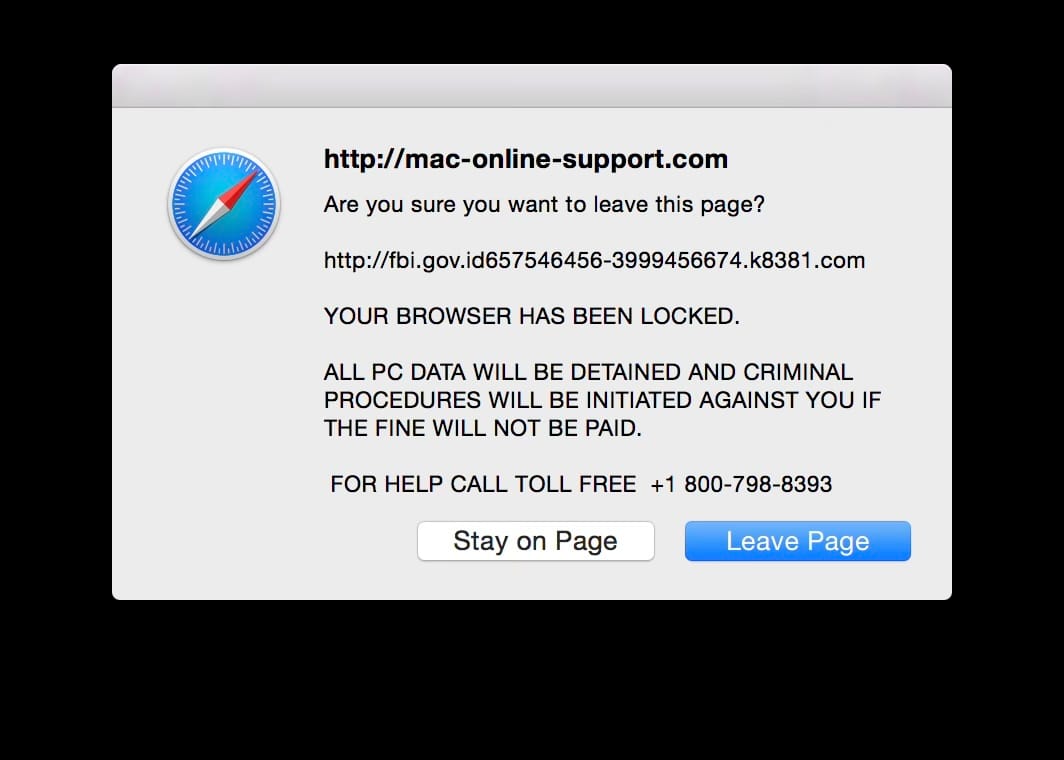
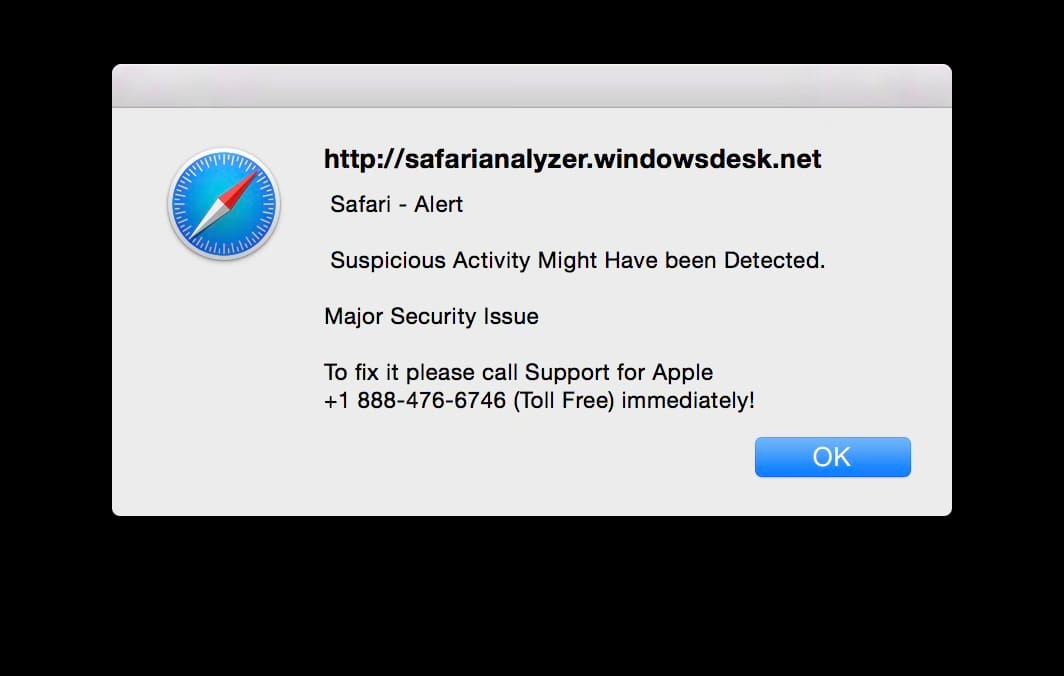
When you see browser popups asking you to call a toll-free number for help or to input any sort of personal information, ignore the instructions and instead immediately call your computer support person or support number for your computer’s operating system. These popups are just “ransomware”: attempts to get your financial information and your password. Often, once you respond to them, your computer locks up and you’ll be told that you have to send ransom money to a foreign operator to get it unlocked. Your best weapon: very regular backups, which allow you to restore your computer to an “unlocked” state. When you see these, quit the app immediately, and don’t return to that page. Do NOT click anything in the box. Instead, just close the page. Do not revisit the site.
In the end
Don't mistake this article for a complete set of practices you can follow to stay safe: it's not. We could suggest dozens more tricks and tactics. But SOME action is better than no action. If you follow the practices here you will very considerably lower your "attack surface" and be a more-difficult target.
Stay safe. It's crazy out there.
Reading
- Goldstein, Brett J. “Opinion | After Mythos, Nobody Is Safe From Cybersecurity Threats.” Opinion. The New York Times, April 28, 2026. https://www.nytimes.com/2026/04/28/opinion/cybersecurity-mythos.html.